A useful tutorial on the Audio Programmer youtube channel takes you through the necessary preparations for creating a synth-based project in JUCE:
Template repo
The video helps you make a nice template for building a synthesiser plugin, so I’ve made a repository for future use:
https://github.com/MartinTownley/JUCEsynthTemplate.git
Projucer Settings
In the Projucer’s Project Settings, under Plugin Characteristics, the checkboxes for “Plugin is a Synth”, “Plugin MIDI Input”, and “Plugin MIDI Output” need to be checked (assuming you want to enable MIDI fuctionality):
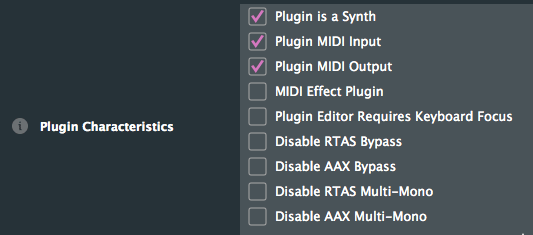
You then need to add header header files to the project that will contain subclasses of the SynthesiserSound and SynthesiserVoice JUCE classes. This is explained here if you scroll down to the detailed description:
https://docs.juce.com/master/classSynthesiser.html#details
De-bug using JUCE Plug-In Host
If testing the plugin in Ableton Live or another DAW, generally there’s a need to close and re-open the programme in order for changes to be intialised – this can be time consuming, so instead you can use the plug-in host to de-bug. This involves changing some settings, explained at 10:40 of this video (note that now the Plug-In Host project is located in “extras” rather than “examples”:
Summary of instructions (for MacOS):
1. In XCode, click Product > Scheme > Edit Scheme
2. Select the “Run” tab, click the “Executable” drop-down menu, and select “Other”
3. Navigate to the build file of the Plug-In Host project – JUCE > extras > AudioPluginHost > Builds > MacOSX > build > Debug > AudioPluginHost
4. Click “Choose”
Now when you build your project, the JUCE Plugin Host GUI should open up. You can then drag the build of whatever plugin your working on into the GUI, and connect it to your audio output and/or MIDI input to test. To open your plugin, double-click it in the GUI.
You should also be able to find your plugin by right-clicking in the GUI:
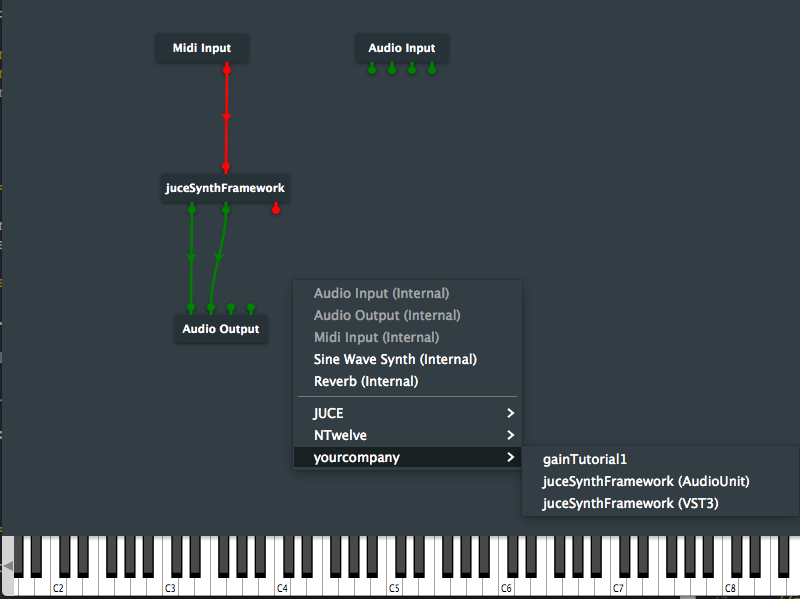
Finally, to avoid loading your plugin into the plugin host each time, go to File>Save As, and save the current state of the plugin host so that it loads up with those settings next time.
MIDI Input Settings
Double click the Midi Input module in the GUI for MIDI input settings, e.g. connecting an external MIDI controller:
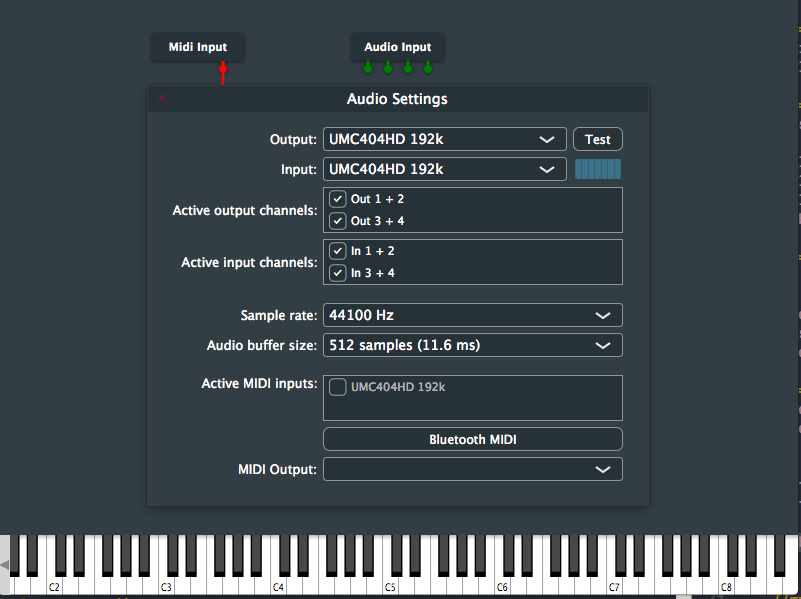
 Advanced Audiovisual Processing 2019